
Wagilo business app
Walks and GPS
Start the right walk
When starting a walk, other eligible dogs booked that day and dogs currently in your care appear as options to include. Check which dogs are going before you start. For a dog with a booked walk, choose the booking it fulfils so that work can be invoiced. Choose Care walk — no booked walk charge for a walk included in their other care, such as boarding or daycare. This avoids creating an extra booked-walk charge.
When starting the walk, choose GPS recording or timer-only when prompted and allow the required phone permissions. Timer-only still saves the walk’s timing and care records if you don’t need a route. Check any off-lead consent reminder before setting off.
The GPS status distinguishes a fresh position from a reliable route fix. An approximate position can be available before the route is ready. Distance pauses above 20 mph; this does not identify the activity or stop the timer.
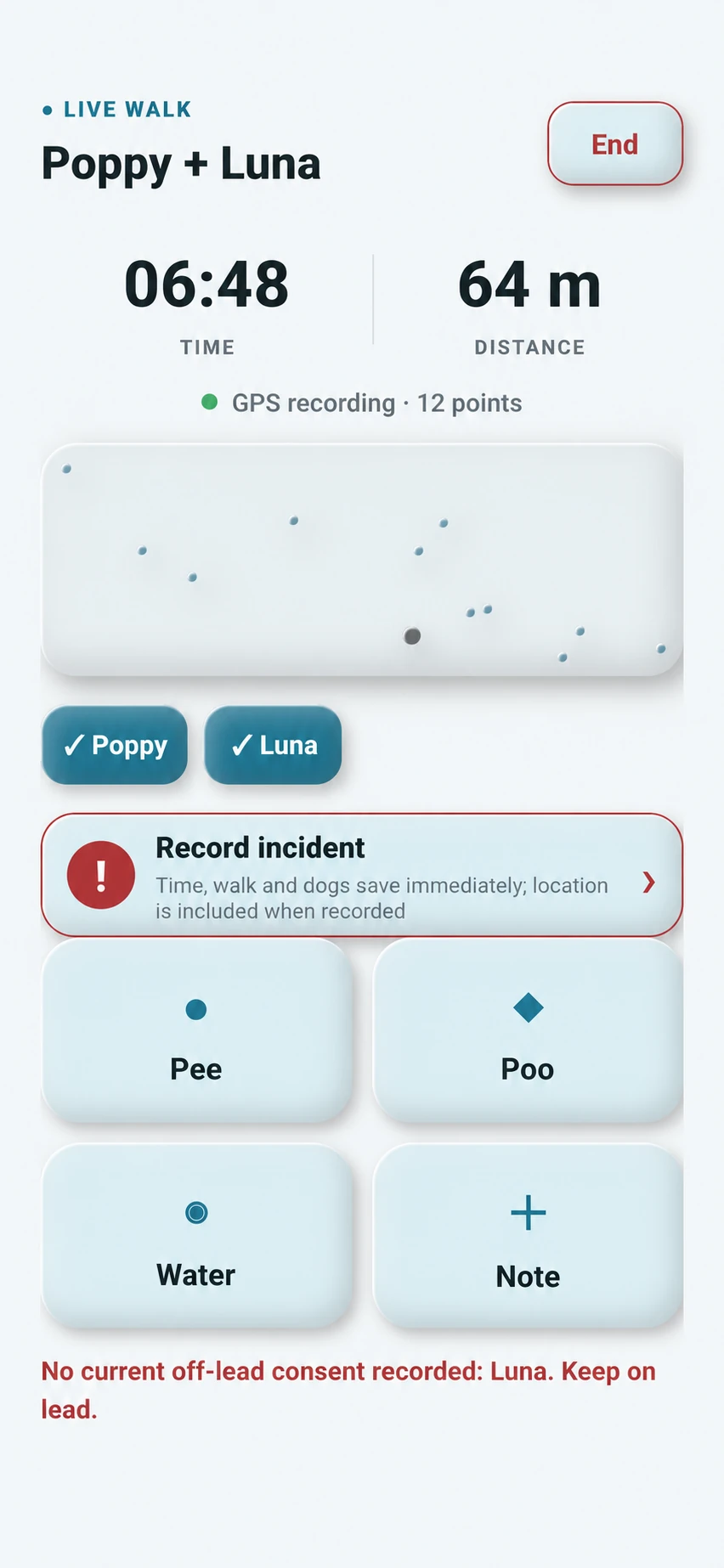
Record events for the selected dogs
No action-target dogs are selected when a walk opens. Tap the dog names an action applies to. After it saves, the selection clears for the next action; if saving fails, it stays selected so you can retry.
Check what dog names are selected before using Pee, Poo, Water or Note. On a group walk, you can select just the dog(s) an event applies to. If only one dog stops for water, you can record that without adding it to everyone else’s history – if they all stop for water then you can select all the dogs and tap water once to record for all.
Use Record incident when you need an incident report with its own details and evidence. A walk note, an incident report and an update sent to the owner are separate records.
End and review the walk
At the end, choose End and confirm End walk. If you opened it too soon, Keep walking returns you to the active walk.
Check the saved dogs, duration and any distance in the summary. The details remain in History & records, and eligible completed work is ready for invoicing. The same walk you recorded during the day can supply the work details for your invoice.
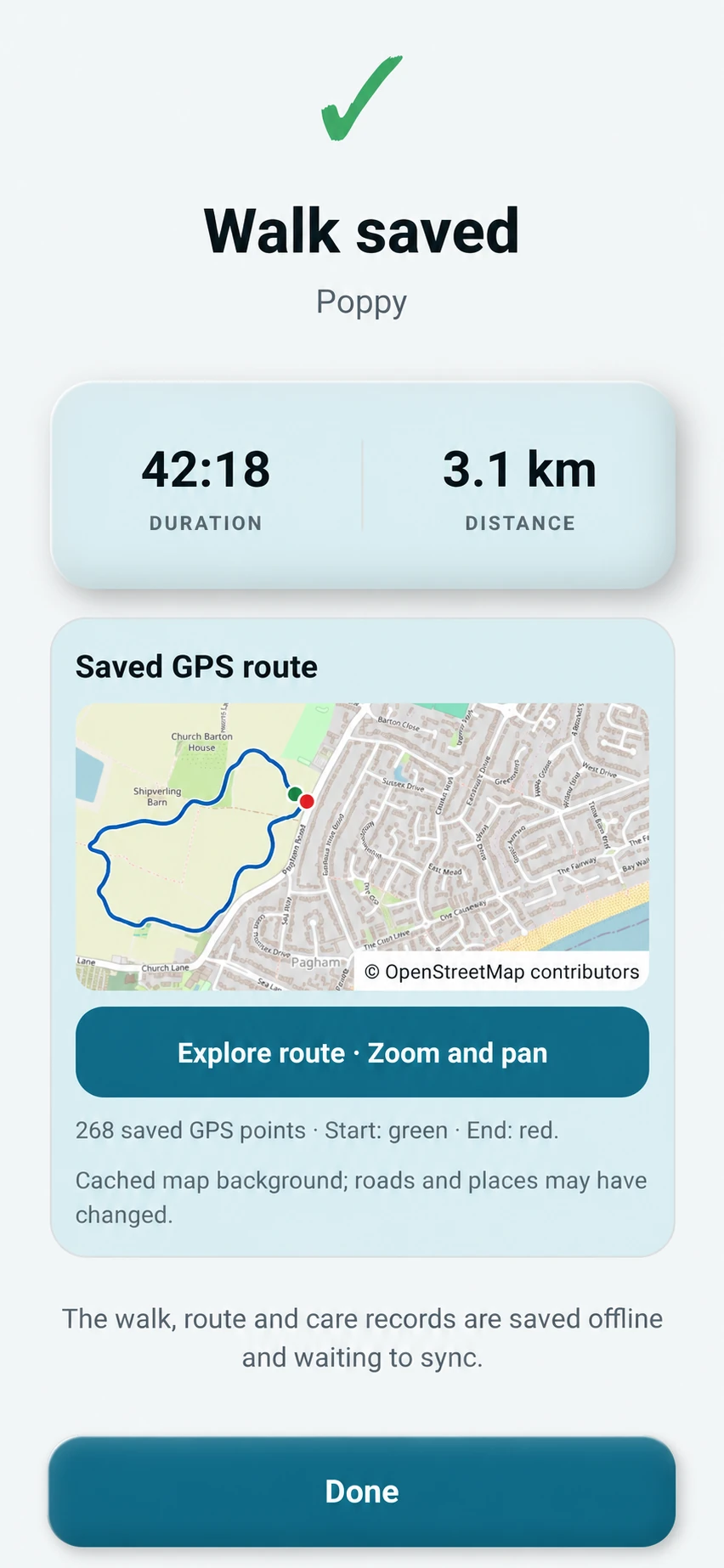
View the saved route
Open Explore route · Zoom and pan from a completed walk’s summary or History when usable GPS points are available. Drag or zoom to inspect a particular part, and use Fit route to see the whole walk again. A map background can be loaded when you have an internet connection.
You can return to a saved route later if you want to check where a walk went. For timer-only walks, the timing and care records are still there. Correcting a saved distance only changes that figure; it doesn’t create a GPS route.
A break in location recording appears as a gap in the saved route. Wagilo does not draw a straight line across the missing section or invent the distance travelled there.
If recording is interrupted
If you expected a route and cannot see one, check that GPS recording was selected and the phone had location access. Granting permission afterwards won’t add a route to a timer-only walk. Keep the saved records and read any error before repeating the action.
Work-mileage monitoring pauses during walks started in Wagilo, including timer-only walks. That keeps the walking session separate from your business travel mileage.
If an active walk is restored on a replacement phone, you can finish that saved walk. Route recording remains with the original recording phone; restoring the record does not recreate missing positions.
On a GPS walk, Enable motion estimate optionally asks the phone for an activity estimate. A sustained estimate can show a possible vehicle or cycling advisory. It works while Wagilo is in the foreground, pauses when the app goes into the background and never stops the walk automatically. Refusing the extra permission leaves the timer and GPS controls available.