
Wagilo business app
Clients and dogs
Add a client and their dogs
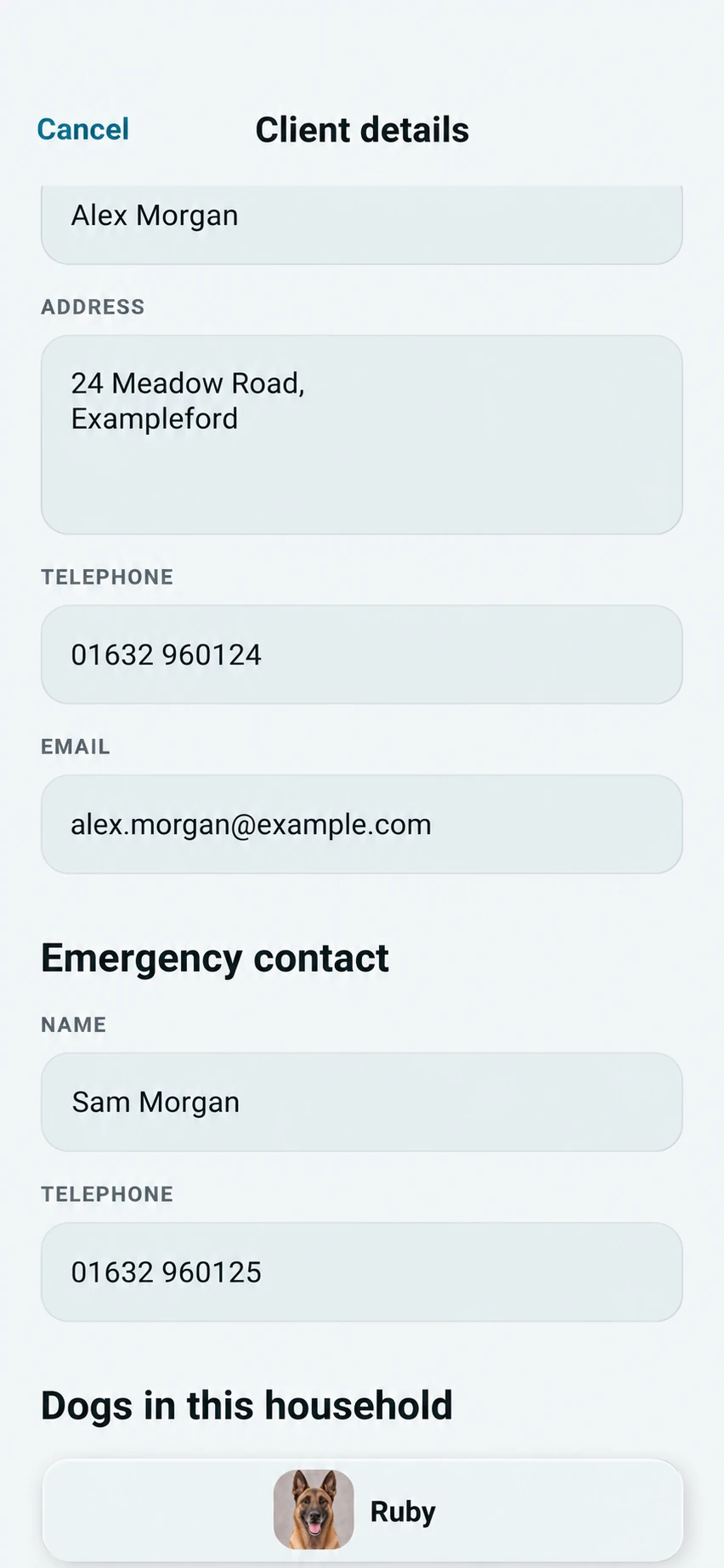
Open Clients → + Add client, enter the contact information and first dog, then choose Save client and dog. You can return to fill in the fuller care information, so you don’t have to gather every answer before creating the basic record.
Keep other dogs from that home under the same client. They can then share billing details, and Wagilo can offer their companions when you make a booking. You still check which dogs are attending each time.
If the owner would rather fill in the details, use Client onboarding. For someone you’ve already added, choose the existing-client route so their answers stay attached to the record you’re using.
Keep care information with the dog
Open the dog’s edit screen to add a photograph and save the health, vet, feeding and handling information supplied by the owner. Keeping it with the dog means you can refer back to it without hunting through earlier messages. Ask the owner about anything missing or unclear, then save your changes.
Under Normal service requirements, set the dog’s usual walk duration and additional care time for each service. For example, a dog that takes a little longer to settle can have an extra care allowance saved here instead of you adjusting every booking. Use business default follows your business walk duration, and an individual booking can still use a different arrangement.
These extra minutes help you plan your time; they don’t automatically add an invoice charge. Save different client rates under the client’s pricing settings.
Set up care plans and medication
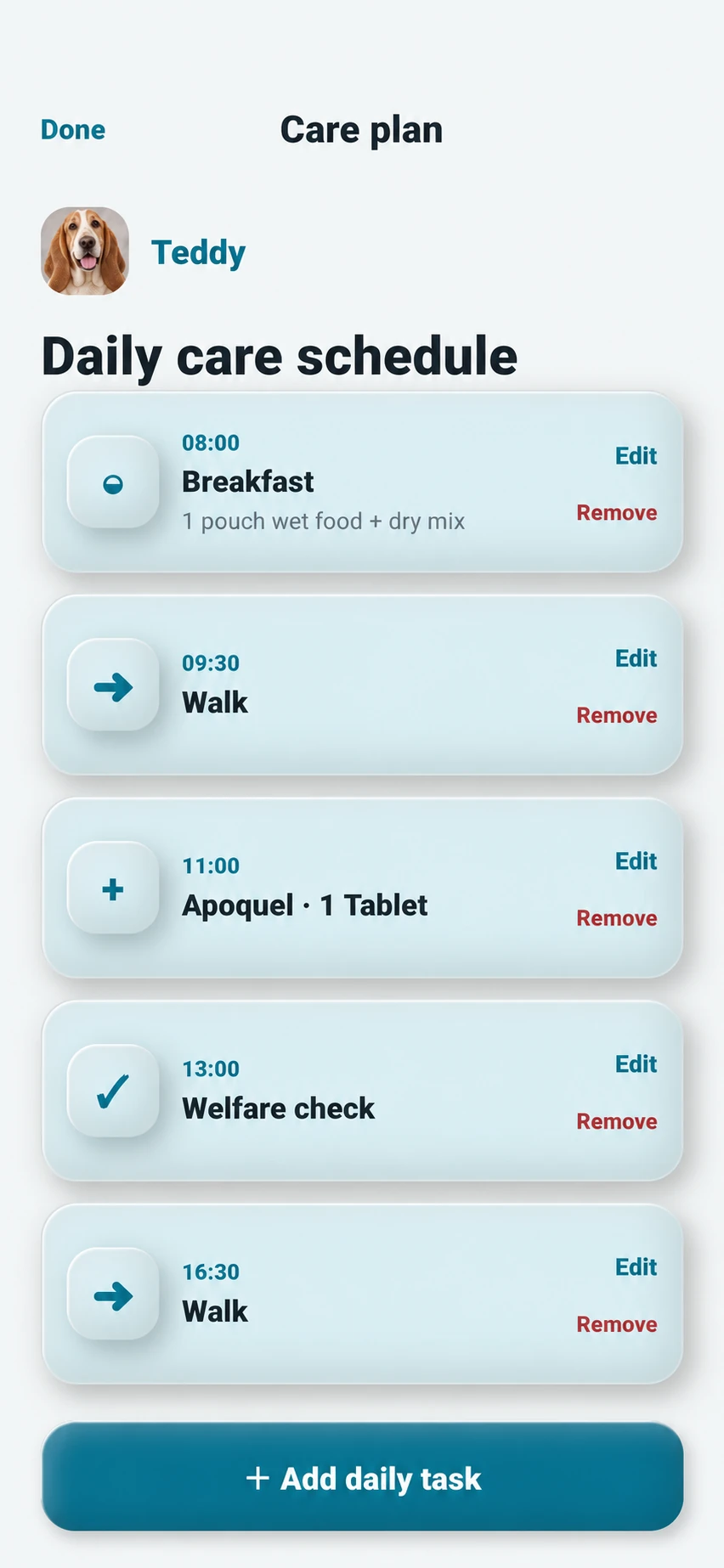
Use Care plan for the dog’s scheduled care and Medication for the medication information and instructions you have been given. Check the dates and times before saving the schedule.
The saved plan supplies tasks while the dog is in your care, helping you keep track during a busy stay. You still record the outcome of each task on Today. A medication schedule says what is due; the dose record says whether it was given, refused or missed.
Before recording a dose, check the medication and instructions shown. If the prescription changes while the form is open, Wagilo asks you to review it again. A repeated save of the same scheduled dose uses the existing record. Use History → Edit record to correct a recorded outcome and explain what actually happened.
If you undid a medication record by mistake, open its History entry, choose Edit record, check the outcome, time and note, then select Restore this corrected medication record. Saving keeps the same scheduled-dose identity and its original prescription details.
Record documents and consent
Open Documents on the dog’s record to add vaccination information, consent or another document record. Include its dates, source and any conditions. Where an expiry date is unknown or unspecified, use that option instead of guessing.
For a renewal, choose Update / renew. The earlier version stays in the history, which is useful if you later need to check what was recorded at the time of a particular stay. Off-lead and photograph permissions are separate, so check each one.
Meet and greets and compatibility
Open Meet and greet from the new-booking form to save the appointment, information from the owner, your observations and the outcome. These notes are private provider records. When you’re ready to proceed, use the onboarding or linked trial action; recording the meeting alone doesn’t take those steps for you.
If you’re assessing two dogs together, use Menu → Dog compatibility & trials. Choose the pair and save your assessment and precautions. That gives you something to refer to before booking them together again. If 2 dogs have been recorded as “Do Not Mix” then a warning will appear when you create a booking that includes those dogs.
Edit or archive a record
Return to the client or dog editor whenever details change, making sure to save. The client’s details also hold their preferred invoice delivery method and individual rates so you can keep using those preferences without selecting them for every invoice.
When you stop caring for a dog, use Archive dog and read the confirmation. Archiving keeps its care, walk and invoice history while removing it from normal selection. Archiving a client also affects linked dogs, and these actions can cancel future bookings, so make sure to check the listed effect before continuing.