
Wagilo business app
Today and daily care
Check the day’s bookings
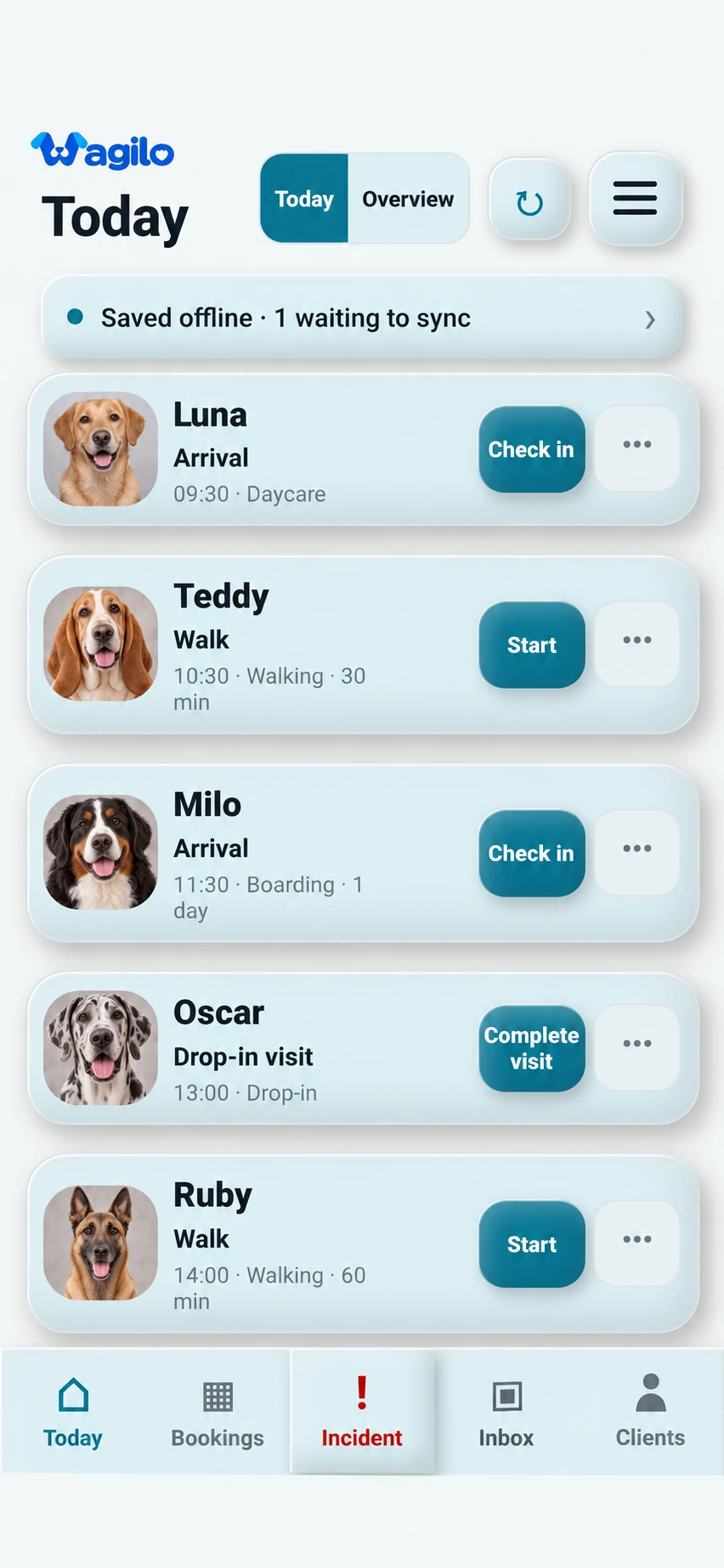
Open Today when you’re ready to work through the day. Each card shows the next action for that booking, so you can pick up work you planned earlier without entering its details again. For a dog with two bookings, check the time on the card before starting.
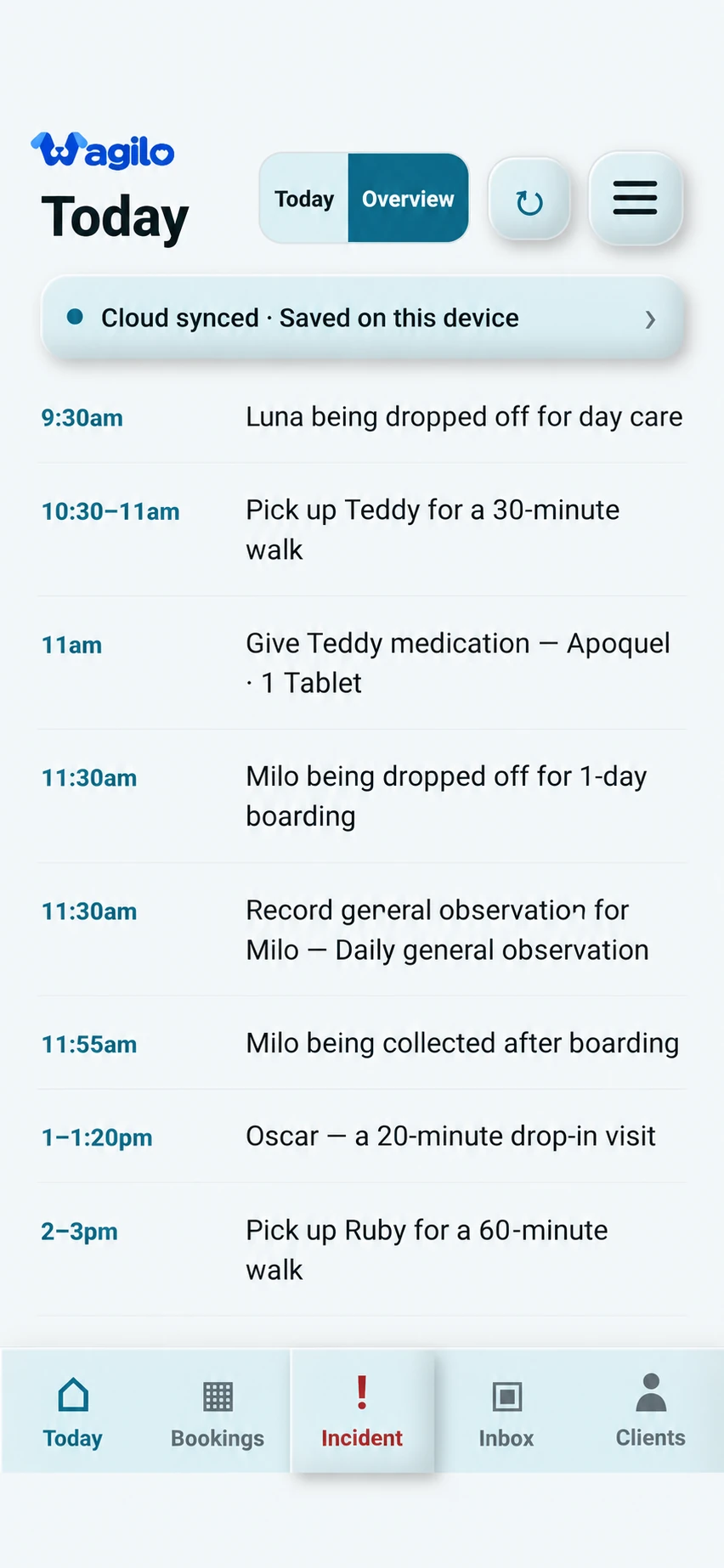
Overview gives you a summary of your day in a more compact list format. It can help you check how a pickup, walk and later drop-in fit together before you set off. Overlapping Bookings are flagged in red as a possible timing clash just to draw your attention to it. Nothing on the Overview page can be interacted with so return to the cards to record actions; use the booking actions or Bookings to change the plan.
Record an arrival
For daycare or boarding, use Check in and record what arrived with the dog. A saved note of quantities or condition of belongings can be useful when you’re checking everything is going home at collection.
Choose Arrived now or Enter earlier time, then confirm the arrival. The earlier-time option lets you record the actual arrival if you were busy welcoming the dog and entered it afterwards. Sitting has its own arrival action without the daycare or boarding belongings process.
Record care as it happens
Open the dog’s card for feeding, toileting, water and other care. When something was scheduled, record it through that task so the outcome is attached to the right occurrence.
For medication, record whether the dose was given, refused or missed and fill in the required details. Editing the schedule changes the plan; it doesn’t record a dose that has already happened.
Use a structured Check for observations you want in the care history. If you also want to tell the owner how their dog is getting on, send a separate Client update. You choose what to publish; saving a care record doesn’t send it.
Deal with overdue tasks
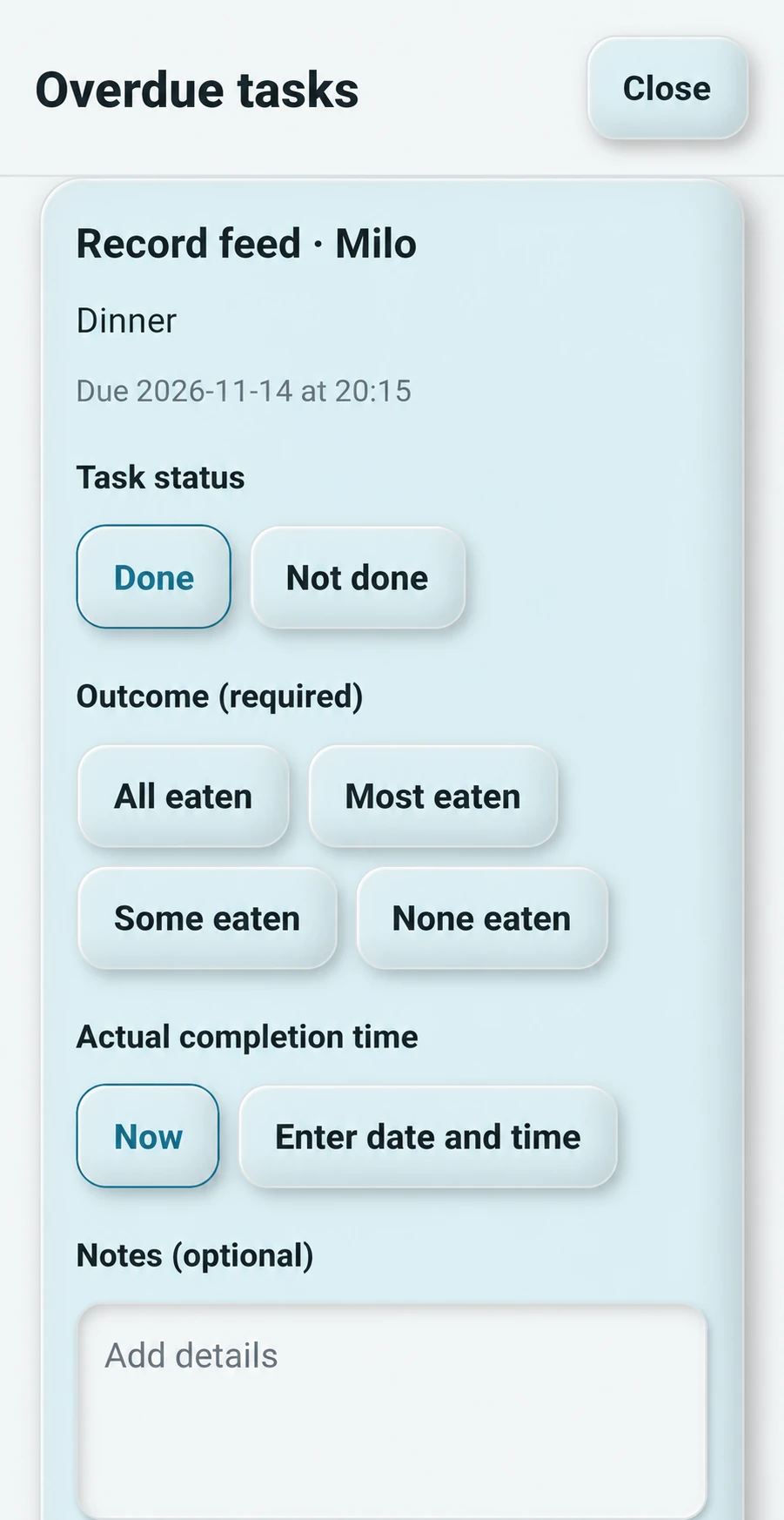
If a task is outstanding, tap Overdue, choose the task and record Done with its outcome or Not done with a reason. Use the actual time controls when entering it later, then choose Save record. That lets the record reflect what happened even if you couldn’t enter it at the time the task was performed.
Timed bookings and care tasks turn red once they’re 30 minutes overdue. The record keeps its scheduled time separate from when you record the outcome.
Finish the service
Finish a walk through the walk controls. For daycare or boarding, check out the dog and record the return of belongings before Confirm checkout. Sitting and drop-ins have their own finish or completion action.
Completing the service makes eligible work available in Work to invoice and leaves the care evidence in History & records. Wagilo waits for you to record completion; the planned end time passing on the clock is not confirmation that the service finished – you need to record it.