
Wagilo business app
Settings and account
Save business and service settings
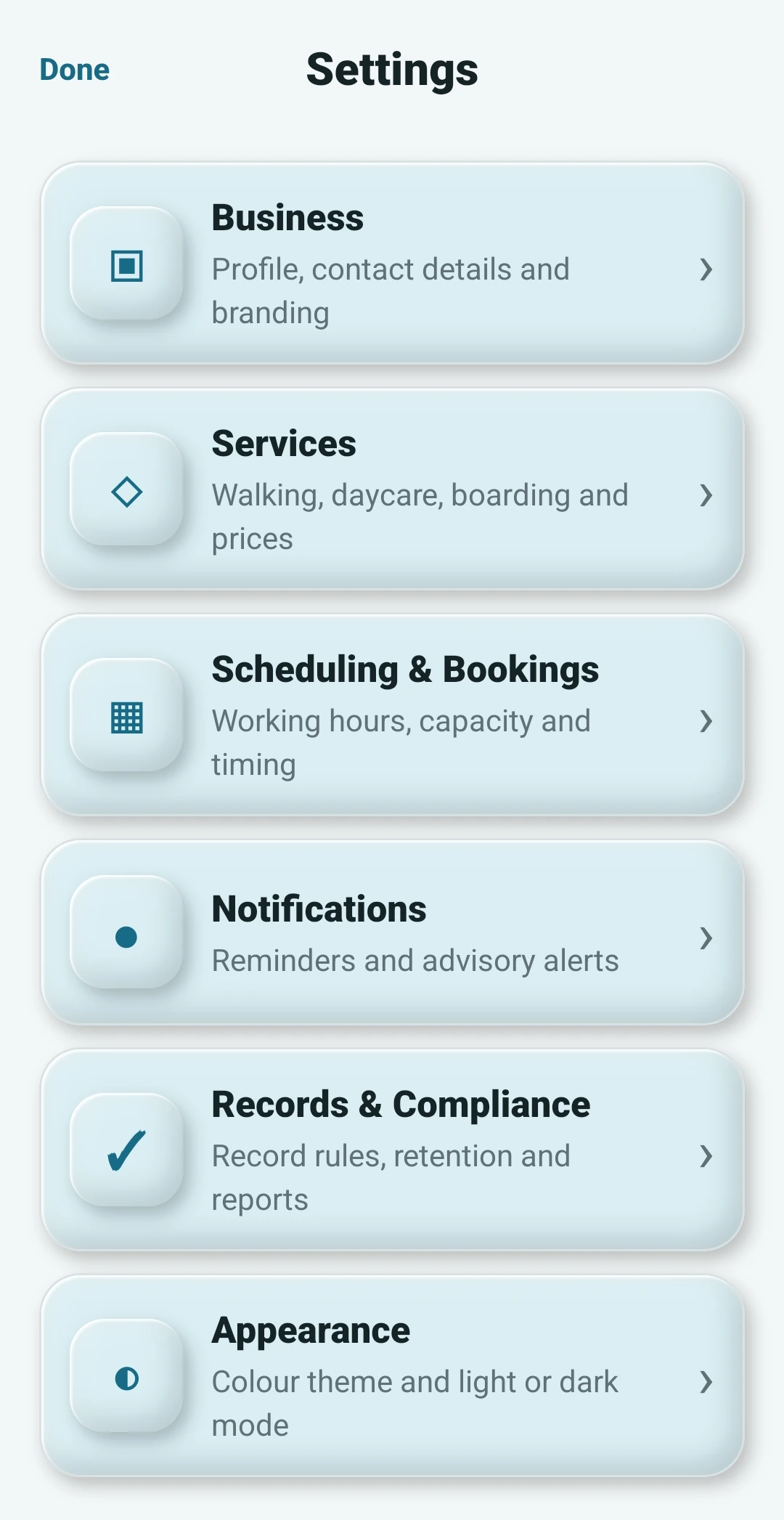
Open Menu → Settings and choose the area you need. Saving business information and invoice defaults here means you can reuse them in your day-to-day work. Services holds the services you offer and their normal rates.
Use Scheduling & Bookings for working hours and booking preferences, then choose the section’s Save action. Appearance preferences apply as you choose them, so there’s no equivalent save step there. Weather base controls are at the bottom of Business settings, with MET Norway attribution directly beneath. Confirm the base and save the settings. Under Appearance, turn off 3D effects for a flat style on buttons, cards and input fields; the preference also applies to Today’s dog cards.
Your logo and wordmark can also be changed in Dashboard → Settings → Edit business settings. Use PNG, JPEG or WebP up to 5 MB and synchronise the phone with media included. The phone caches downloaded branding for offline use; removing it clears the current choice on the next successful sync. An issued invoice keeps the branding saved with that invoice.
Choose notifications and reminders
In Notifications, choose the client activity and advisory reminders you want, then save. You can focus the reminders on the things you need help keeping track of, such as an upcoming visit or a document renewal.
Connected-client notifications need the account connection, and local reminders also need the phone’s permission. Use Send test reminder to check the local setup. If the phone blocks it, review its app settings; a saved preference cannot override denied permission.
At due time schedules a care reminder without an advance lead time. Care reminders use the business timezone and are reconciled after recorded outcomes so completed doses do not remain scheduled. Phone notification permission and operating-system behaviour still apply.
Synchronise your records
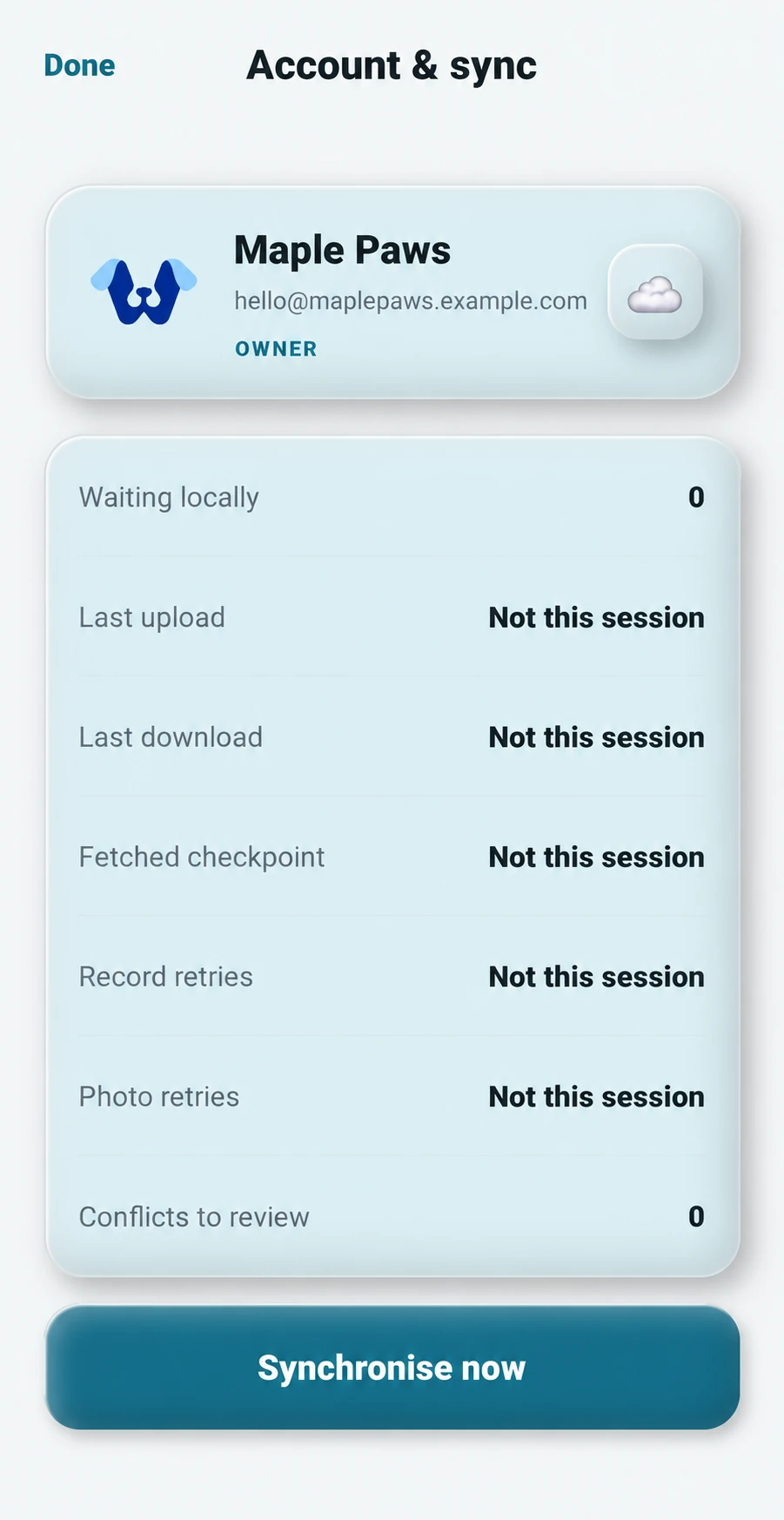
Open Account & sync, check the business and choose Synchronise now. Synchronisation makes saved changes available across your connected devices. Review the result, as record and photo transfers can finish separately.
Your connection preference can hold large photo and route uploads for later. Existing records and routes can still download on your current connection. If asked about mobile data, choose records only, synchronise anyway or cancel. This lets you transfer the work details while leaving a large photograph backup until you have a suitable connection.
For an incomplete result, open View full error details and check outstanding retries or conflicts. Keep the local records while changes are pending. You can copy those details for support instead of trying to describe the whole error from memory.
Wi-Fi-only route backup also holds the coordinates in completed walks until a suitable sync. Record details and the saved distance can transfer separately. Before changing phones or updating the app, check that any photos and routes you need have finished transferring.
Resolve a conflict
If two versions are shown, read them before choosing Keep earlier or Use newer, then synchronise again. The choice lets you decide which saved change to retain.
For a historical medication review, check the original dose and time. Choose Accept historical record if that is what happened, or Keep as unconfirmed if you cannot confirm it. Both choices retain the original evidence and leave the current prescription unchanged. Unconfirmed history does not count as a completed dose.
For an unavailable photo, check the indicated attachment before replacing or removing it. The associated care record stays in place. Synchronise afterwards to send that correction to other devices.
Accounting records have their own Sync / back up now action in Setup. Check that status separately for expenses, receipts and mileage.
Account access and subscription
If you need to reset access, enter your email on the account sign-in screen and choose Forgot password?. Follow the reset link if it arrives.
Open Plan & subscription to check your access. Use the relevant store’s management option for a subscription bought there, or Restore purchase where available. Cancelling renewal leaves your saved records in place.
Signing out also keeps local records, but new changes wait for a signed-in session to synchronise. Before changing accounts or moving to another device, check for anything still waiting to transfer. If access could not be verified and Wagilo asks you to sign in again, open Account & sync, sign out and sign in with the same account. Your local records remain stored on the device. A saved access status does not by itself mean the phone is offline.
Licensing guidance and support
Use the licensing guidance and readiness checklists for your location and services to organise the information you need. They are guidance, and completing one is not a licence or approval from an authority.
Help & support → Guided walkthroughs has guides for setup, clients, invitations, bookings, care, invoices, payments and photo updates. If you’d rather work through a task in the app, a guide points out the controls as you go. Read its starting requirements and have the information ready. It uses normal records and actions, including real invoice delivery or published updates when completed.
You’ll find privacy and account-deletion options under the account controls. If you choose an email request, review and send the draft in your mail app. Opening it alone does not send the request.
To change the questions owners answer or attach your business terms, see onboarding questions and terms.