
Wagilo web dashboard
Web dashboard
Sign in with your business account
Open the Wagilo web dashboard and sign in with your provider account. You can use a bigger screen for administration while keeping the phone app for work during the day.
Choose Overview, Bookings, Clients, Dogs, Records, Finances or Settings for the area you need. Synchronise phone changes when you want them available here. If a view seems stale, refresh and check synchronisation before entering the record again.
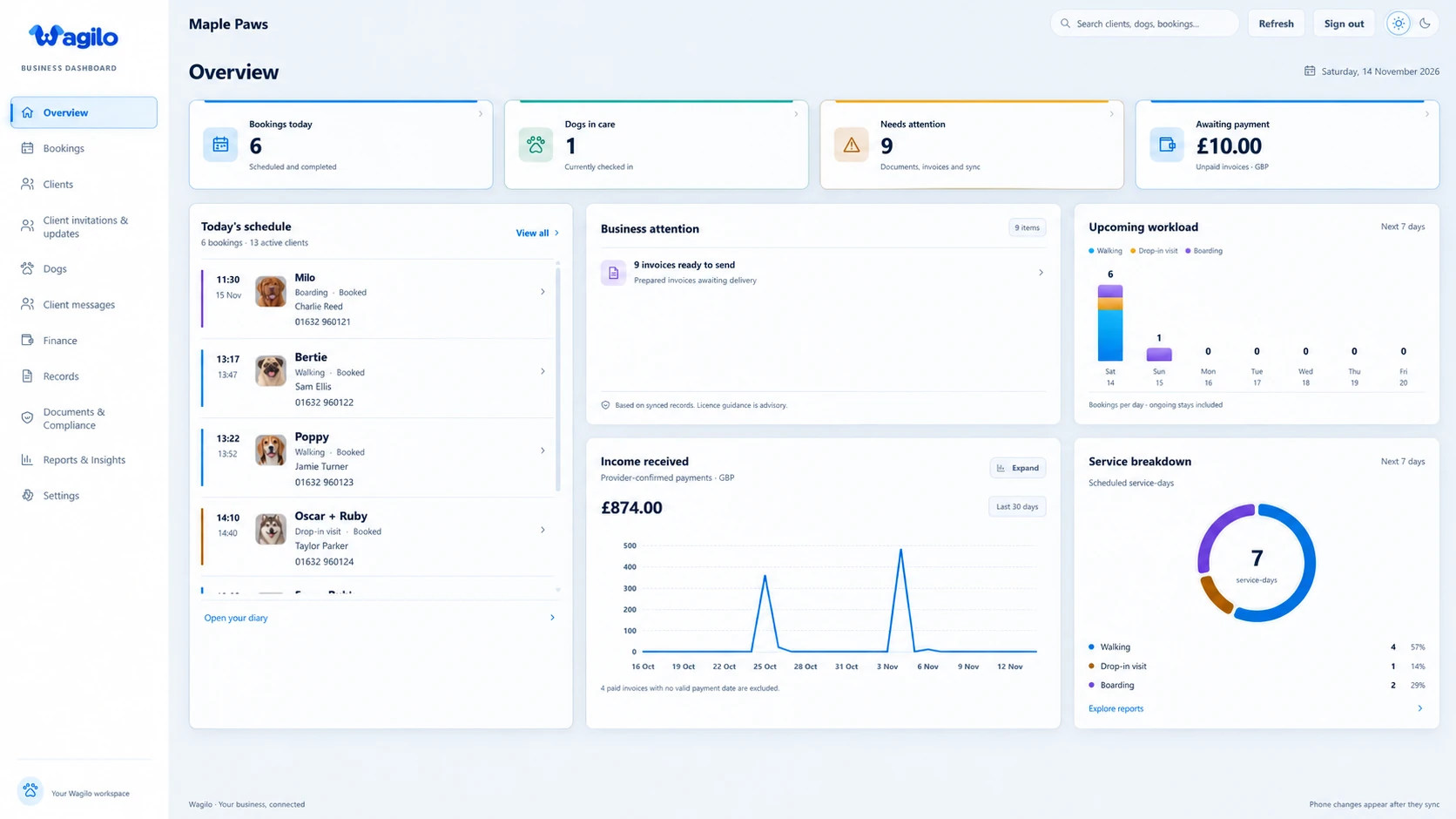
Manage clients and bookings
Add a household in Clients, then add its dogs through the linked profile. Use that same client for another dog from the home, keeping their information together.
In Bookings, choose Add booking and work through the client, dogs, service and other details. Review dates, prices and warnings before saving. The larger view can be useful when checking the diary ahead, but the dashboard has its own forms; the phone app’s repeat-booking controls are not part of this editor.
Review invoices and finances
Use the finance tools to review completed work, prepare drafts and use the available invoice actions. You can check the details on the larger screen before issuing or publishing, with the draft saved first.
Mark issued is for an invoice you have already delivered; it doesn’t send an email. When reviewing totals, check the selected measure. Completed work, invoiced revenue and money received describe different stages, so choose the one that answers what you want to know.
Review records and settings
Records shows synchronised care history. It gives you another place to read the saved evidence later, while live walks, medication and routine care are still recorded through the provider app.
Check the relevant fields and save actions when changing settings. Business settings can affect shared information, whereas a display preference may have a narrower scope. If a conflict appears, review the versions before choosing one so you keep the change you intended.
To change the questions owners answer or attach your business terms, see onboarding questions and terms.