
Wagilo business app
Prices
Set your normal rates
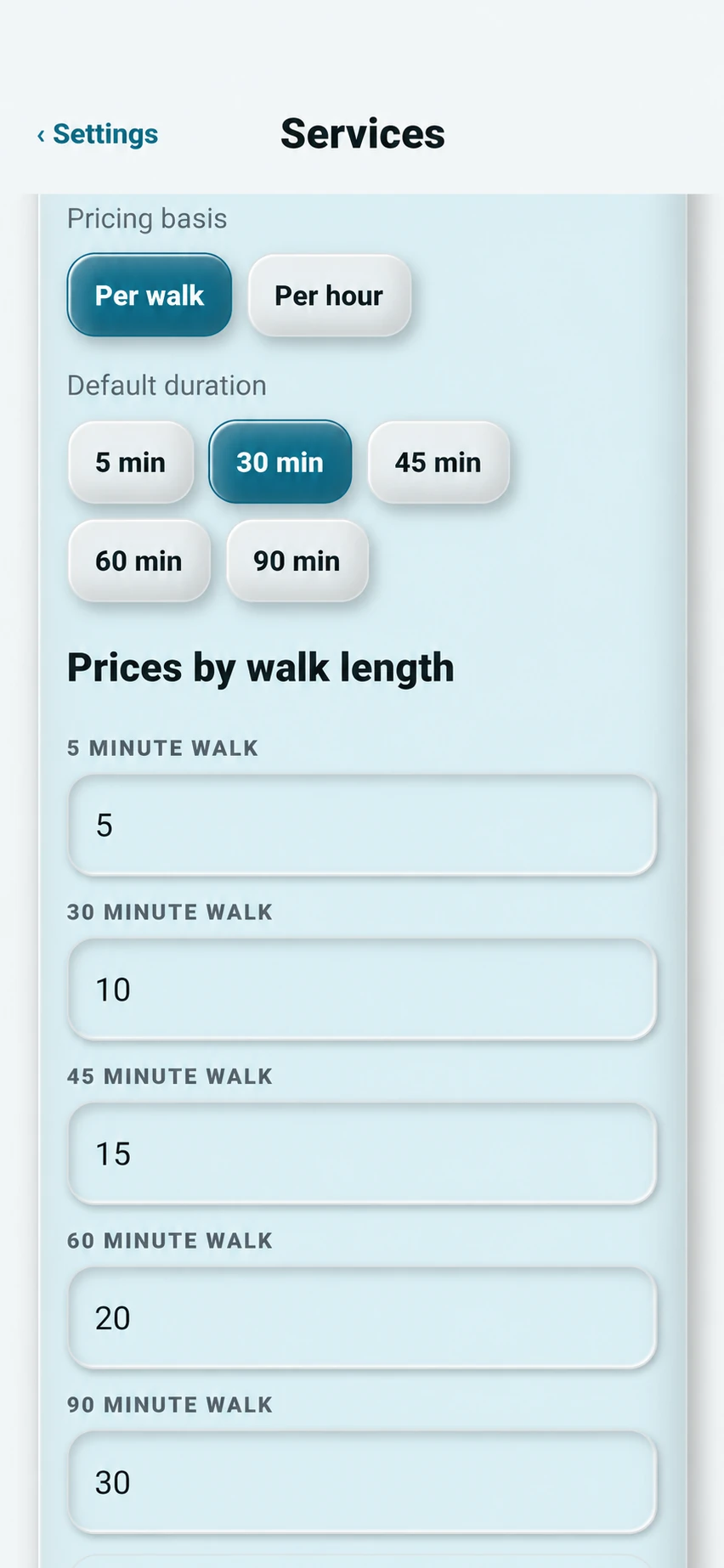
Open Menu → Settings → Services, enable the service and enter your usual prices. Choose Per walk or Per hour for walking, and Per booking or Per hour for sitting, then save the Services page.
These rates give you a starting point for each booking, so most work won’t need a price entered separately. Per-walk prices can vary by duration; hourly prices use the service time. Daycare and drop-ins use a primary quantity of one.
Boarding rounds the stay’s duration up to whole 24-hour units, shown as charged nights. For example, 2.5 days (60 hours) uses three boarding nights. Check the draft before sending if you want to charge a different total for that stay.
Give a client different prices
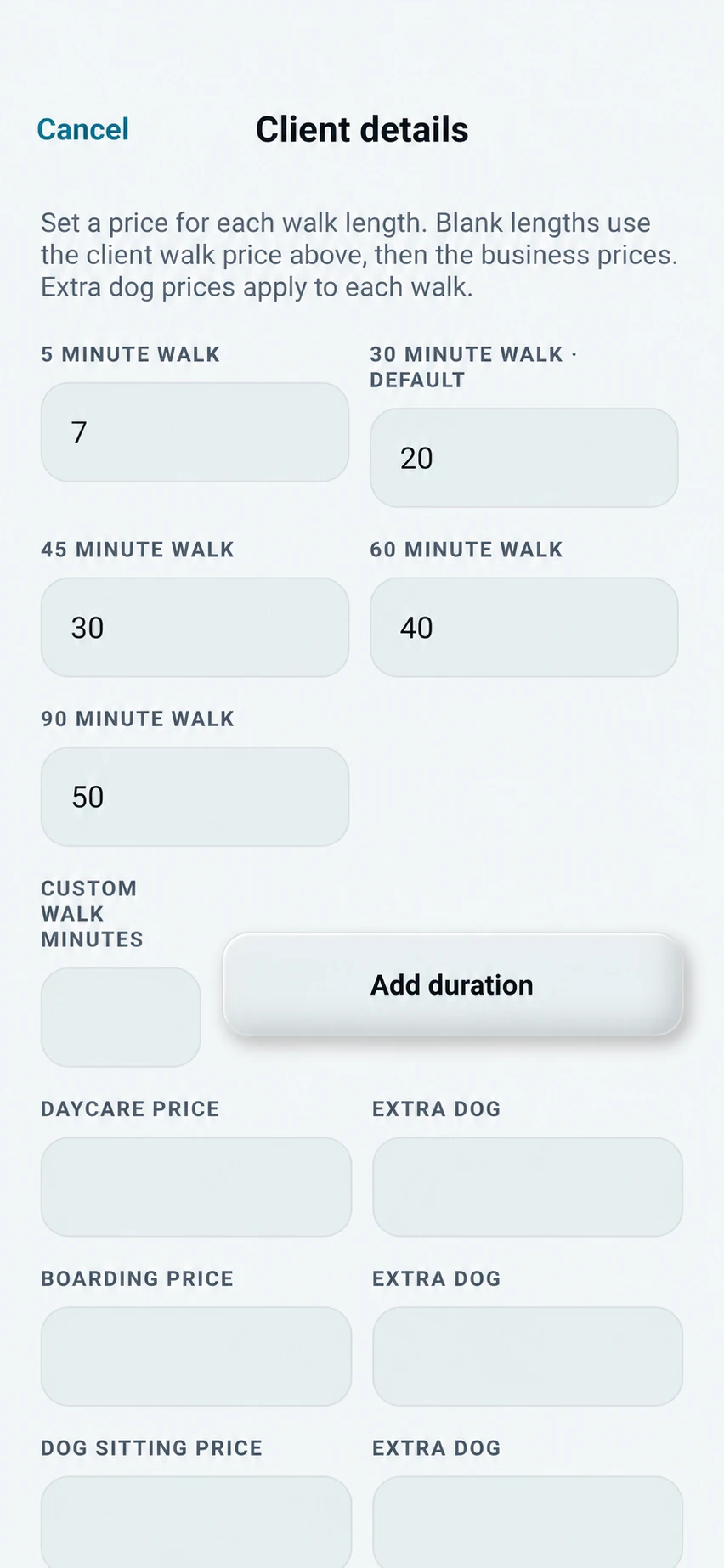
For a client who normally pays a different rate, open Clients, tap the client card and choose Edit client details, fill in their price fields and Save client. You can also give the household a different walking pricing basis – hourly or per walk.
This is useful when a long-standing client still pays an older rate or a client with a more challenging dog pays a higher one. Save it once in their details and keep your normal rates for everyone else, this saves you from correcting that client’s invoices each time.
Leave a client price blank to use the next applicable default. Entering 0 sets that rate to zero. A client can be charged the standard rate for one type of service and a unique rate for another, for example - a blank daycare field can use your normal daycare price, while a filled-in walking field gives the household its own walking rate.
Which rate applies?
For per-walk pricing, a primary price override saved on a booking takes priority. Otherwise, Wagilo tries the client’s price for that exact duration and then their general walk price. If neither is set, it uses the business duration price and then the business general walk price.
For example, if your normal 30-minute walk is £14 and a client has a saved 30-minute price of £12, their walk uses £12. A blank 45-minute field still tries their general walk price before falling back to your business rates.
Hourly walking multiplies the applicable hourly rate by the service time in hours. The duration-specific per-walk prices are not used for that calculation.
Price for one booking
In the current booking form, select Custom under the duration to reveal PRICE FOR THIS BOOKING. Keep or change the duration, enter the price and confirm the booking, or save changes to an existing one. Choosing Custom doesn’t mean the walk itself has to be an unusual length.
The field is available for walking when the business uses per-walk pricing, drop-ins, and sitting when the business uses per-booking pricing.
You could use it to reduce the main price of one walk as a loyalty discount without changing the client’s normal rates. It changes the main service price; additional-dog charges can still apply.
Daycare, boarding and hourly pricing do not expose that field. For a one-off adjustment to those services, change the invoice draft before issuing it. For example, if you want to charge £100 for a 2.5-day boarding stay instead of the calculated three-night charge then you would adjust the invoice draft to that total before sending it to the client.
Additional dogs
Additional dogs have their own rate. Wagilo uses the client’s additional-dog price first, then the applicable business rate, and applies it to each extra dog in that household within the same booking.
This lets you keep a second-dog rate without entering a discount for every shared walk. Remember that the current booking override changes the primary price, not necessarily the final total. Additional dogs and the service’s hours or charged nights can still affect the amount.
Weekend and special-date prices
If you charge differently at weekends, enable Charge different weekend prices in Menu → Settings → Services, complete the weekend fields and save. Client-specific rates still take priority, so check those if a particular household’s estimate doesn’t change.
For an increase on an exact date, add a special-date percentage and save Services. This can cover a date you charge extra for without changing the normal price used on other dates. New bookings capture the matching increase; editing one keeps its saved adjustment, while a copy uses the current rules.
A booking primary-price override bypasses its special-date increase, including the increase on additional-dog lines. Base additional-dog charges still apply.
When a price change takes effect
Ordinary business and client rates are looked up again for uninvoiced work. If you change a normal rate while future bookings are already in the diary, their estimates can change too. Review the intended amounts before creating invoices.
Once an invoice draft is created, it keeps its copied line prices and billing details. Later default changes don’t rewrite those lines, so make any correction on the draft before sending it.
Additional care and travel minutes help you plan your time. If you want to charge for them, add an explicit invoice charge; those scheduling allowances do not create a separate charge automatically.